Setting up email accounts
SETTING UP EMAIL ACCOUNTS ON YOUR PC & MOBILE DEVICE
Step-by-step instruction guides
To set up email on your PC or mobile device, click on the name of your phone or program on this page for step-by-step instructions. If we don’t have your device or program listed here, please let us know & we’ll add it for you.
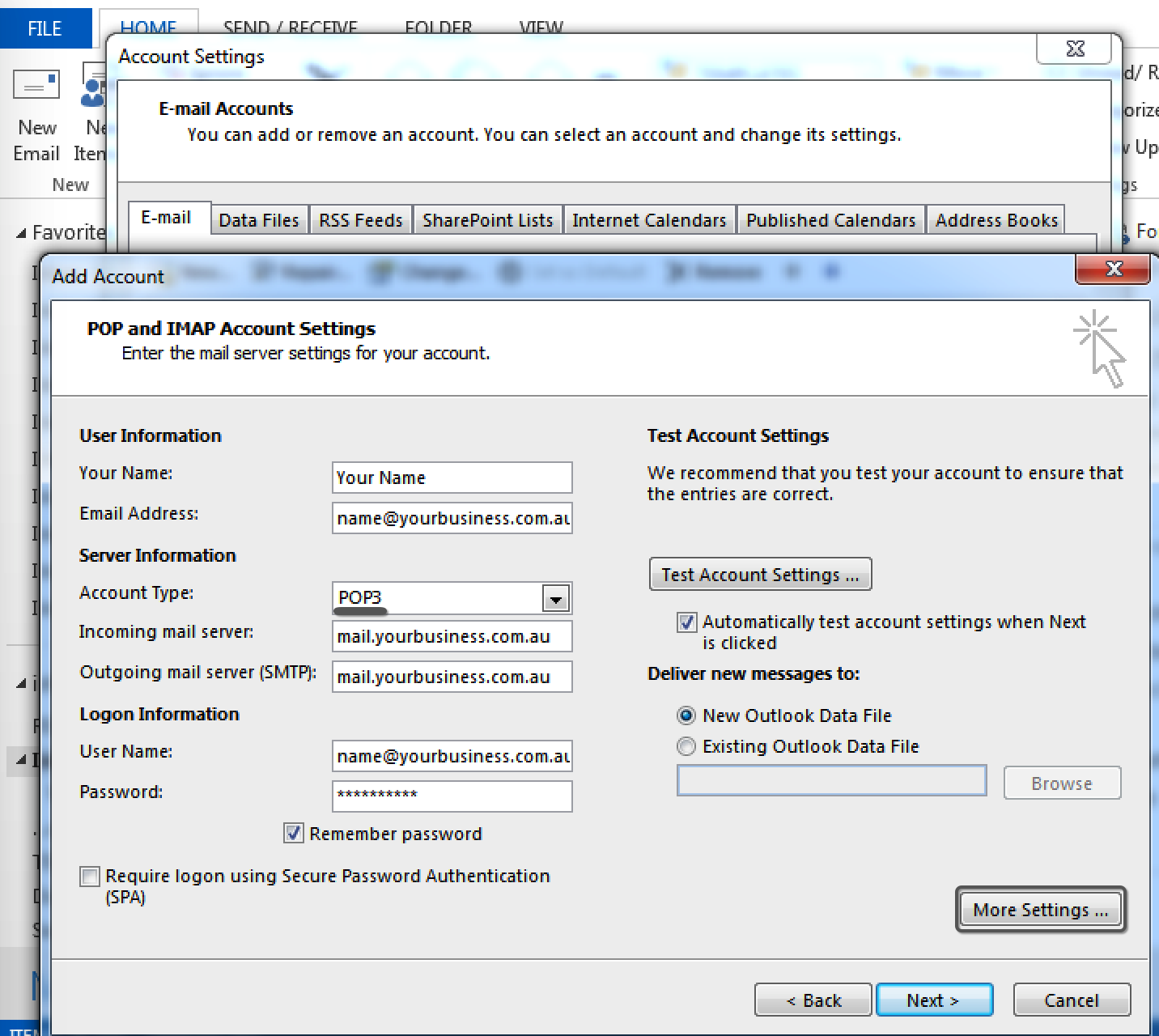
“To receive email on more than one device you’ll need to update the settings on all devices (including your PC) so that a copy of the email is left on the server for a few days so that it can be retrieved on each. Also make sure the account name in your email setup is your full email address (e.g. user@domain.com.au) and not just the “user” part.”
POP3 downloads a copy of the email on your device & then deletes it from the server. Some email clients keep a copy of the email on the server for X days (depending on what you set it to).
IMAP keeps a copy on the server ONLY. If you delete the email from one device, it deletes it permanently from the server & all devices. As the server has limited space, we recommend you set up a local folder on your PC or Mac to store your emails, rather than the server.
Remember: Once an email has been deleted from the server, it’s permanently deleted.
PC programs & browsers
HAVE QUESTIONS
ABOUT SETTING UP YOUR NEW EMAIL ACCOUNT?
Contact the Guy Designs team today!